
How to Maintain Character Consistency in AI Video: A Step-by-Step Workflow
Character consistency in AI video is not a generation problem. It is a workflow problem. When the same character appears across six different environments, that consistency does not come from a better prompt. It comes from a structured upstream decision about what that character looks like, made once, before a single frame is generated.
The mechanism is Reference Assets: a system that locks character appearance at the casting stage and carries it automatically into every storyboard frame and video chunk that follows. This tutorial walks through the exact workflow used to hold our protagonist consistent across every scene in Return to Control — LucidPro's own brand film — across wildly different lighting conditions, emotional states, and camera framings.
.png)
Why Character Consistency Fails in Standard AI Video Workflows
The root cause is structural. Most AI video workflows treat each shot as an independent generation event. You describe the character in a prompt, generate the shot, move on to the next. The model has no memory of what it produced before. By shot three, the character's face has drifted. By shot ten, they look like a different person.
Prompt injection— manually re-pasting a character description into every generation — does not solve this. Descriptions are interpretive. "Young Hispanic woman, late teens, dark hair, determined expression" produces a different read every time the model processes it, especially across different scene contexts, lighting conditions, and camera angles. The model is not remembering your character. It is re-imagining them from text each time.
This is the consistency problem — and it is why AI slop vs. genuinely crafted AI content comes down to workflow architecture, not generation quality. The models are more than capable. Most workflows are not.
The Return to Control Challenge: One Character, Six Environments
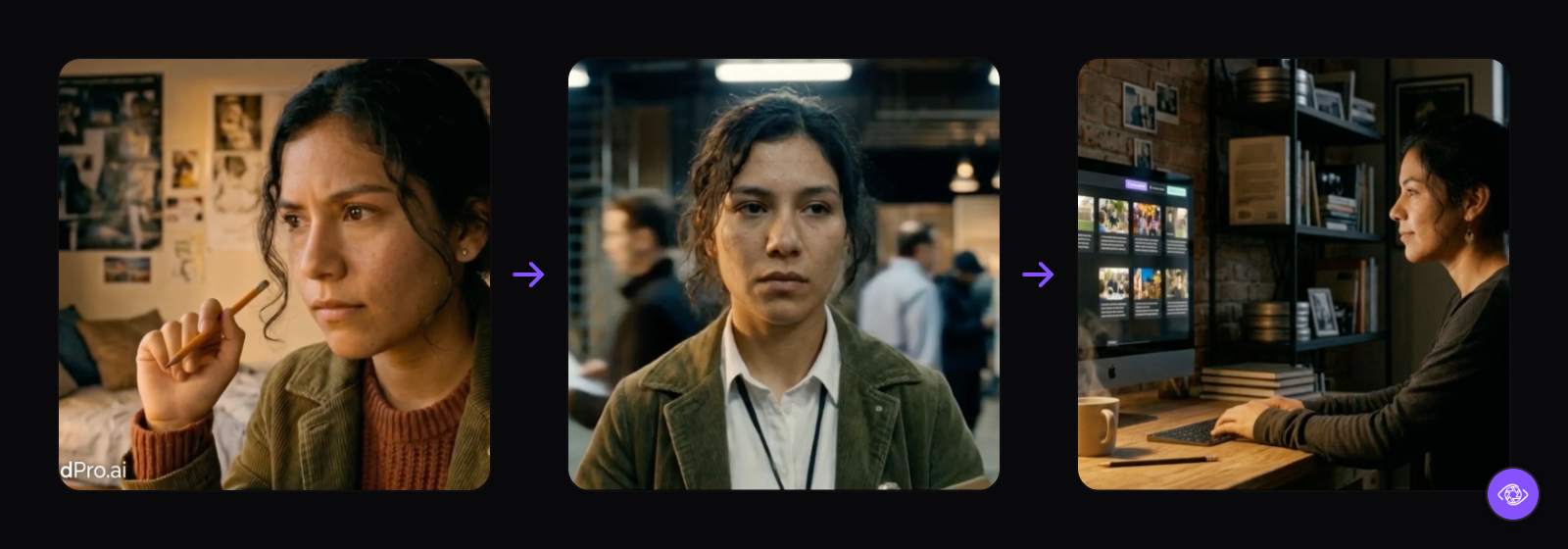
Return to Control is a 30-second brand film following a single protagonist: a young Hispanic filmmaker in her late teens who starts with a vision, loses it to the machinery of the industry, and reclaims it through LucidPro.
The production challenge is the emotional arc of the film itself. The same character has to hold together across a warm, intimate bedroom lit by evening light, with a close-up on a hand sketching a screenplay; the same character on a sunlit street outside a coffee shop, filming with a 16mm camera; the same character stepping into a film studio, hopeful. Then a hard cut: harsh fluorescent overhead lighting, a cold corporate environment, three suits talking at her simultaneously. Then a timelapse — the same face, same proportions, visibly more defeated. Then back: a quiet apartment at night, the character lit only by a monitor, leaning forward as a storyboard renders.
Six distinct environments. Three different lighting temperatures. A visible aging arc — from teenager with a camera to corporate drone to reclaimed creator in her 30s — expressed entirely through costume changes, without ever regenerating the character. Every one of these is a potential drift point, and every drift point is a frame where the audience stops believing the story.
How Do You Maintain Character Consistency in AI Video?
The answer is what we call The Character Stack: a layered set of Reference Assets — face reference, full-body reference, and per-scene costume reference — built and locked before storyboarding begins. Here is the step-by-step workflow.
Step 1: Generate and lock the character image in Casting
Upload your screenplay. LucidPro extracts every character and drafts an appearance profile from their dialogue and stage direction. For the protagonist in Return to Control, the platform reads her as a young Hispanic woman in her late teens — creative, detail-oriented, visually curious — and generates concept art variants.
Generate four variants, pick the strongest read, and refine in natural language if needed ("slightly younger, more tired around the eyes, warmer skin tone"). Do not regenerate from scratch once you have the right direction — use the edit function to preserve what is already working. Then lock the image. This is now the canonical face.
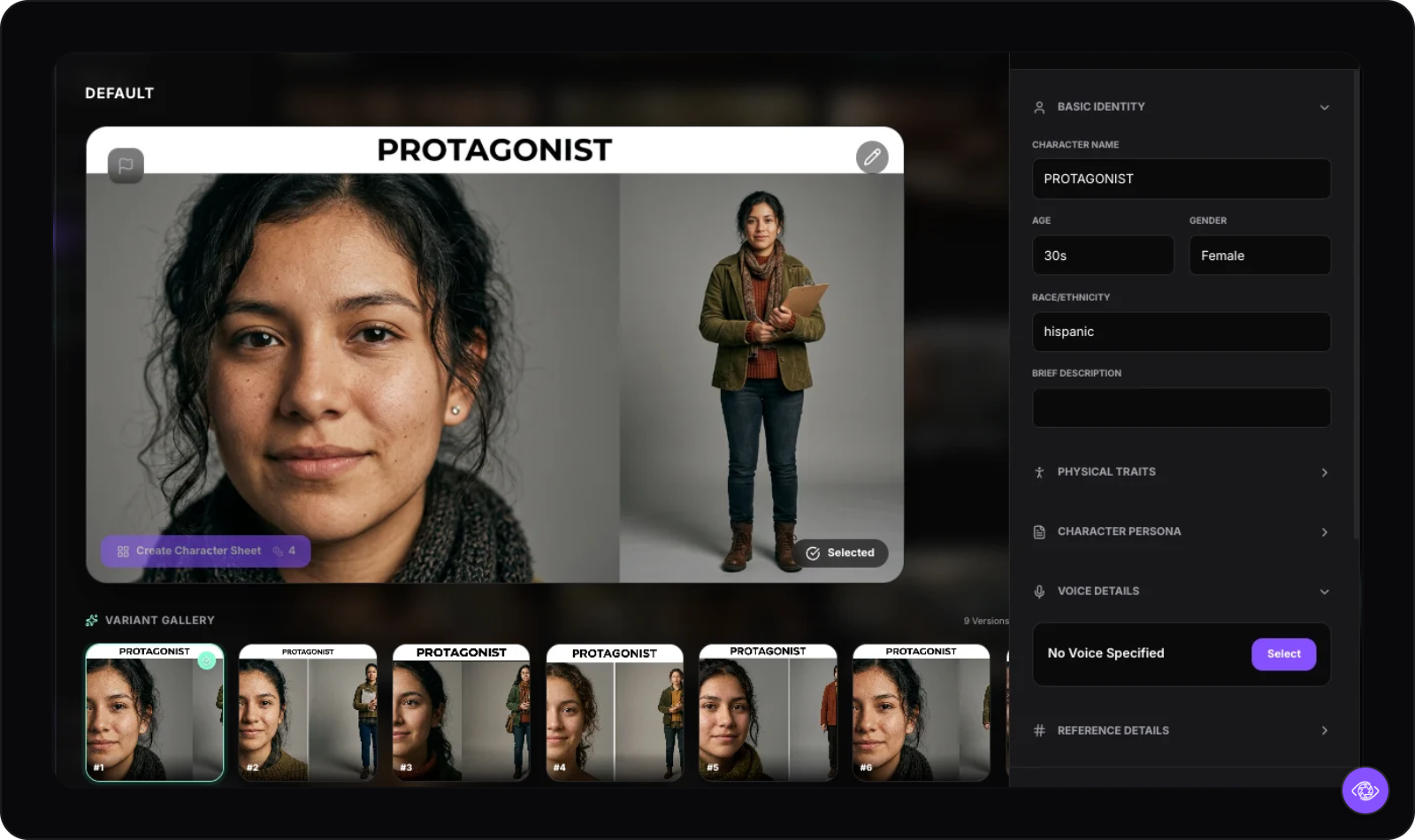
Step 2: Build the Character Stack — face reference plus full-body reference
A single image is not enough, you need to create a Character Reference Sheet: a face close-up and a full-body pose. The face shot drives identity — the model uses it to anchor the character's specific features across every shot (including their profile). The full-body shot drives proportion and posture — without it, the character's height, build, and physicality drift independently of the face.
In LucidPro, character images created in Casting automatically become Reference Assets, as you'll see in Step 4.
.png)
Step 3: Build wardrobe on top of the locked character
In Return to Control, the protagonist does not just move through different environments — she ages through them. The casual creative teenager sketching in her bedroom and the defeated professional holding a clipboard on a corporate set are the same person at different points in her life. In a conventional production, you would cast different actors, or use makeup and wardrobe to bridge the gap. In LucidPro, you use the Wardrobe system.
This is the critical distinction: the Character Stack stays locked throughout the entire production — the same face, the same proportions, the same visual identity. What changes is the costume. The costume signals the life stage. A casual graphic tee and worn jeans read as the teenager with a camera. A stiff blazer and clipboard read as the industry professional she became. The audience's brain does the rest. You are not regenerating a character to show growth — you are dressing the same character differently.
LucidPro surfaces this work automatically. After Story Analysis reads the screenplay, the platform detects scene-level context changes that imply wardrobe shifts — a character moving from "INT. TEENAGE BEDROOM" to "INT. FILM STUDIO" is flagged as a likely costume change — and recommends costume assignments per scene before you have touched the Wardrobe panel. You review, confirm, or override the suggestions. This means the costume arc across your screenplay is scaffolded from the script, not manually tracked shot by shot.
The technical rule does not change: always generate each costume variant on the locked character image, not on a generic figure or a fresh generation. A costume image generated independently carries its own proportions and color interpretation — it will drift the character's physical read in every shot that uses it. Each costume gets its own Reference Asset, scoped to the scenes where it appears, and LucidPro applies the correct one to each shot automatically.
.png)
Step 4: Let the references do the work — storyboards and video takes
Once the Character Stack is built — face reference, full-body reference, and per-scene costume references all locked — LucidPro applies them automatically at every downstream generation stage. When you generate a storyboard frame, the platform pulls the character's active Reference Assets and the correct costume for that scene into the image prompt. When you generate a video take from that storyboard frame, the same references carry through into the video chunk. The character does not need to be re-described. The costume does not need to be re-specified. The decisions you made in Casting and Wardrobe flow forward automatically.
The storyboard frame is also the start anchor for the video take — which means a frame that is on-model produces a take that starts on-model. Generate the start frame first, confirm the character and costume are correct, then generate. If something is off, fix it at the reference level before generating video; drift caught in storyboarding costs a fraction of drift caught in video.
.png)
What Breaks Character Consistency — and How to Fix It
Reference Asset bloat. Attaching eight variations of the same character image dilutes the model's interpretation. Two or three strong, focused references beat ten unfocused ones. If consistency is failing, remove references rather than adding more.
Regenerating after locking. Regenerating a character image mid-production restarts the visual definition. Every downstream shot that was generated against the old reference now diverges from the new one. Treat lock as a commitment — use natural-language editing to make small adjustments, not full regeneration.
Costume references on the wrong body. A costume generated independently (not on the locked character image) carries its own proportions and colour interpretation. Always generate costumes on the locked character as the base image.
Model selection for face fidelity. Different video models have different strengths. Kling holds character identity and facial detail in dialogue-heavy and close-up shots better than most alternatives. For any scene where the protagonist's face is the primary subject — the close-up on her sketching hand, the MCU in the studio — prefer the model with the strongest face-fidelity record on your specific character type. Run a single test chunk on two models before committing the whole shot list.
Frequently Asked Questions
- How do you maintain character consistency in AI video?
- Build a Character Stack upstream of generation: a locked character image, a face Reference Asset, a full-body Reference Asset, and per-scene costume references — all generated before storyboarding begins. Every downstream generation inherits these references automatically. The character's appearance is defined structurally, not re-described in every prompt.
- What is a Reference Asset in AI video production?
- A Reference Asset is a link from a platform object — a character, costume, setting, or prop — to a specific image that anchors what that thing looks like. When LucidPro generates a storyboard frame or video chunk, it pulls in the relevant Reference Assets so the character looks like the character and the location looks like the location, across every shot in the project.
- Why does my AI video character look different in every scene?
- The cause is almost always missing or weak Reference Assets. If no reference is attached, the model re-interprets the character from the text prompt on every generation — producing a different read each time. Attach a face reference and a full-body reference, lock the character image, and verify the references are active in the References panel before generating.
- How many reference images should I use per character?
- Two to three strong, focused references beat more unfocused ones. For most characters: one face-forward shot and one full-body shot. For characters in complex scenes with multiple framings, add a three-quarter profile. Beyond four or five references, the model averages across all of them rather than locking to a clear read — consistency degrades rather than improves.
- Does character consistency work across different AI video models?
- Yes — Reference Assets flow into generation regardless of which model you select per chunk. The character definition is set at the platform level, not at the model level. That said, different models hold face fidelity with different precision. Kling is strongest on close-up identity; Luma prioritises motion. For shots where the character's face is primary, pick accordingly.